

From first draft to final file,
work with AI that knows govcon
Our mission is to combine our government contracting experience with the latest technology to make your everyday govcon work easier.
In the past year, GovTribe AI has become a big part of that, helping contractors save hours on everything from finding opportunities to drafting proposals. But recently, we noticed contractors were turning to it again and again for one thing in particular: creating files.
A lot of the same kinds of files, too—compliance matrices, pricing frameworks, annotated proposals.
It got us thinking: Could we make GovTribe AI better at this work? Could we train it on the documents contractors are trying to create and what agencies expect from them, so users get a better first draft and a faster path to the finished file?
Turns out, the answer was yes.
So we made GovTribe AI a govcon file expert that can help you create documents and work alongside you to get them across the finish line. Keep reading to learn how it can make your everyday govcon work a little easier.
REAL-WORLD EXAMPLE
One user told us they received an RFQ and asked GovTribe AI to draft a compliant response using information about their company. After a few edits, they submitted it—and won.
GovTribe AI vs. general AI
Before we dive in, you might be wondering, "Can't I just use Claude or ChatGPT to help draft documents like this?"
It's a fair question.
And here's the answer—the difference between general AI and GovTribe AI is how much you want to educate your tool before you start working on a task. With a general LLM, you'll need to supply everything from general govcon education and what belongs in the document to specific opportunity details and other market context.
GovTribe AI, on the other hand, already knows how govcon works and has all the data to support your work (plus exclusive journalistic insights from our parent company, GovExec).
GENERAL AI
Start with an explanation
Explain what work you're trying to do and provide all opportunity information before starting.
GOVTRIBE AI
Start with the work
Get straight to the task at hand, knowing GovTribe is already trained on govcon work and market intel.
Long story short: GovTribe AI lets you spend less time explaining the basics so you can move projects forward faster.
How to start docs in GovTribe
You can start with a template, blank file, federal contract opportunity or award, AI chat, or existing file you already have.
01 / TEMPLATE
Use a template
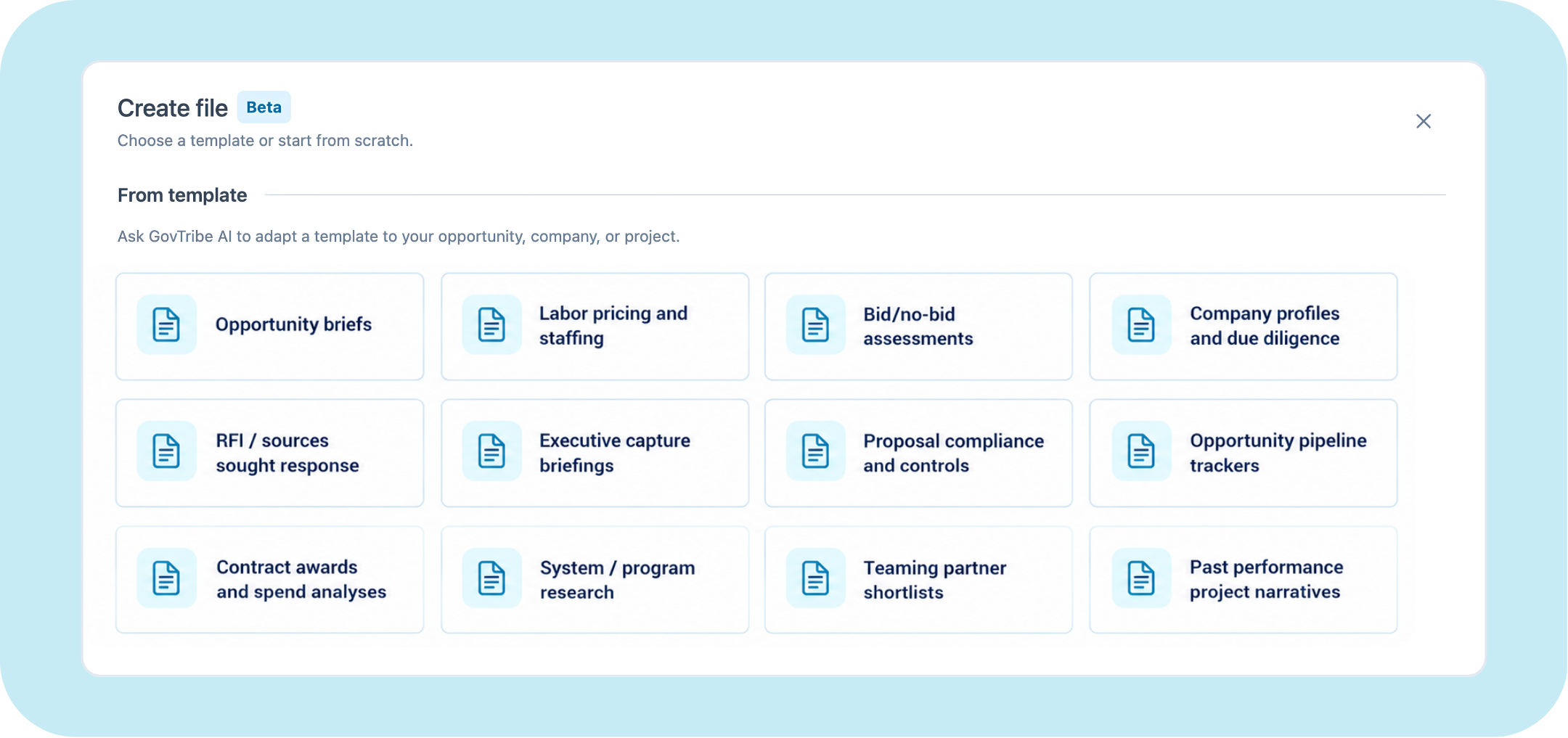
GovTribe AI → Files → Create file → From template
For a quick start, you can choose one of our ready-made templates, describe your project, and immediately get started.
02 / BLANK FILE
Start from scratch
GovTribe AI → Files → Create file → Start from scratch
If your work doesn't fall into one of those templates, you can start with a Word, Excel, or PowerPoint file, describe your project, and get started.
03 / OPPORTUNITY OR AWARD
Start from an opportunity or award
Federal contract opportunity or award → Create file
If you're already looking at a federal contract opportunity or award, you can select Create file right from the page. GovTribe AI will use that opportunity or award as context for the file you create.
04 / CHAT
Chat your way through it
GovTribe AI → Chat
Of course, you always have the option to kick things off with a simple chat. You can describe your project and work toward a file together.
05 / YOUR FILE
Bring your own file
GovTribe AI → Files → Upload file
Finally, you can also upload your own file and tell GovTribe AI what you’d like to do with it.
How to make edits
Getting a first draft quickly is useful, but being able to shape it is just as important. At the end of the day, your expertise and judgment are invaluable to great work.
That's why we made it super easy to edit in GovTribe.
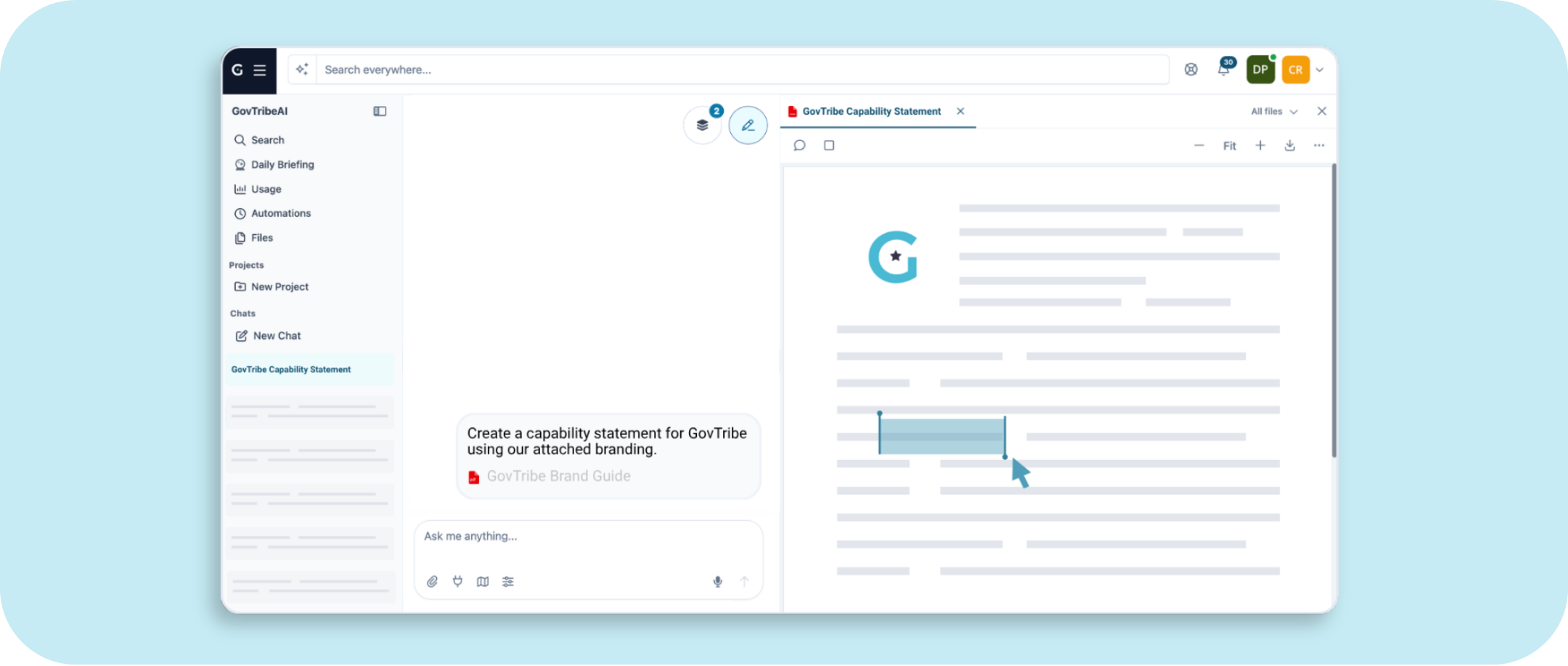
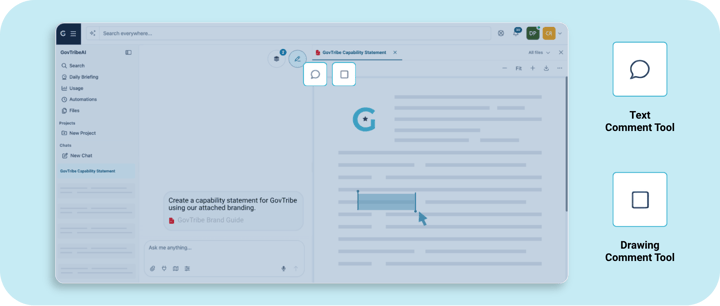
Once you have a draft, you can review the file on the right while chatting with GovTribe AI about your edits on the left. To make an exact change, use the text comment tool to select specific words in the document or the drawing comment tool to mark an image, chart, or other area. From there, you can leave your notes right on the file.
Once you’ve added your notes, hit send in the chat. GovTribe AI will make the changes and give you an updated draft to review. Keep going back and forth until you’re happy with the file and ready to download.
Tip: Want a teammate’s input? Share a conversation link or work together from a file in your team’s workspace.
How to find and organize your files
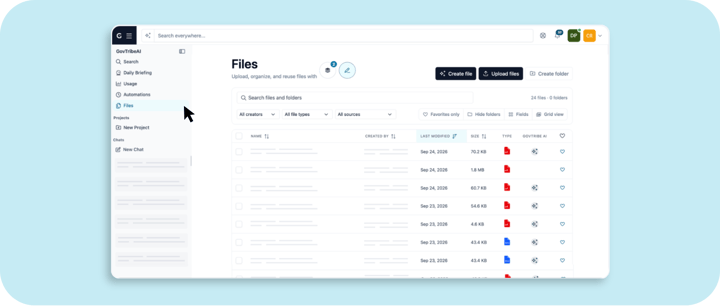
Your files automatically go in your Files tab, so you can come back to a draft and pick up where you left off. You can also put files in folders, favorite the ones you use often, or hide the ones you don't.
Looking for a specific file? Search in the Files tab or in the global search bar at the top of your screen, which looks across your files as well as the GovTribe database.
CREATE A DOCUMENT
Want to try?
Start a free trial and co-author your first document with 2,000 free credits.
Start free trial →