

Data & research
There’s a lot more to explore in GovTribe beyond finding opportunities. You can research agencies and vendors, look at contract awards, find contacts and source documents, explore spending trends, and more.
This guide will help you find the data you’re looking for, make sense of it, and export it when you want to work with it outside GovTribe. We’ll also show you how to open a CSV in Excel, turn it into a readable table, and fix common formatting problems.
Jump to a section
01 / Explore data
Find the information you need
The left-hand navigation in GovTribe organizes data into different areas. You don’t need to learn all of them at once. Start with what you’re trying to find.
Opportunities
Find federal contracts, grants, forecasts, and state and local bids.
Sidebar → Opportunities
Awards
See who won work, which agencies awarded it, contract values, and award history.
Sidebar → Awards
Participants
Research federal agencies, states, local jurisdictions, and vendors.
Sidebar → Participants
Beacon
Find contacts connected to government buyers and vendors, then organize them into groups.
Sidebar → Beacon → Contacts
Reports
Explore funding trends, market activity, and vendors entering a market.
Sidebar → Reports
Files
Search government documents and files saved in your workspace.
Sidebar → Files
Categories
Explore NAICS, PSC, NIGP, and UNSPSC codes and the work associated with them.
Sidebar → Categories
Programs
Research federal grant programs and major defense programs, including related opportunities and awards.
Sidebar → Programs
Not sure where to start?
Try searching for an agency, vendor, category, or keyword you know. Open a record to see its related opportunities, awards, files, and other activity. It’s an easy way to explore the connections without starting a separate search every time.
02 / Reports & research
Go beyond individual records
Search is great for finding individual contracts, agencies, and companies. When you want to understand the bigger picture, Reports can help you see patterns in the data.
Funding
See where government dollars are going, compare spending over time, and identify active markets.
New entrants
See which vendors are entering a federal market or showing up in new areas of work.
Already have an award search?
On supported award search pages, select View In Reports to turn your current search into charts, trends, and funding breakdowns. The report uses the search filters you’ve already applied.
Tip: Start with a question, like “Which agencies are spending the most on these services?” or “Which companies are winning work in this market?” Then use filters, awards, and reports to explore the answer.
03 / Export data
Export search results
Want to work with GovTribe data in Excel or share it with your team? You can export results from supported search pages. Most search-result exports are CSV files, which you can open in Excel or another spreadsheet tool.
The most important thing is to narrow your search first. GovTribe exports the results that match your current search and filters, not just the records you can see on the current page.
How to export
1
Open a search page. Choose the type of data you want, such as opportunities, awards, vendors, contacts, or government files.
2
Narrow your results. Add keywords, filters, and date ranges until the results match what you need. Check the total result count.
3
Select Export Search Results. GovTribe will prepare your export. You can keep working while it’s being generated.
4
Download your file. Look for an email titled Your GovTribe Export is Ready, an in-app notification, or a download message in your browser.
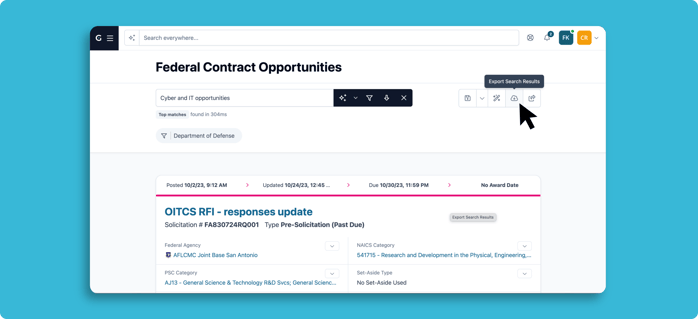
Apply your filters, then select Export Search Results to prepare a CSV export.
A few things to keep in mind
Export limits depend on your plan. If your result set is too large, add filters or split it into smaller searches.
Download links expire after 24 hours. If yours expires, run the export again.
CSV columns vary by record type. An opportunity export won’t have exactly the same fields as an award, contact, or vendor export.
04 / Excel
Open and organize your CSV in Excel
Once you’ve downloaded a GovTribe export, you can open it in Excel to review, sort, filter, or share the data.
A CSV is a text file with comma-separated values. Importing separates the fields into columns, and formatting makes those columns easier to read.
On Mac: import the CSV
Start with a new workbook and use File → Import, so Excel splits your data into columns.
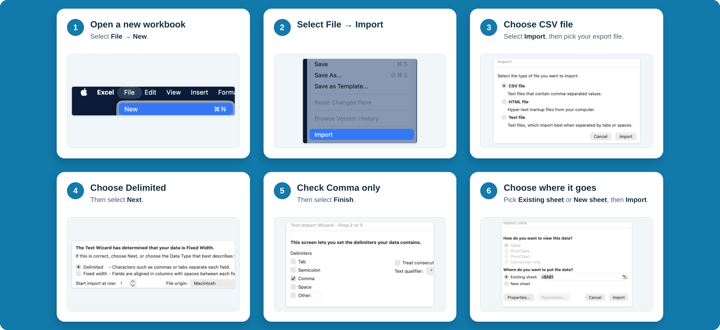
Note: Excel menus vary by version. If your import window looks different, look for the delimiter setting, choose Comma, and check the preview before importing.
On Windows: open and format the CSV
Open the export straight from Downloads, then turn it into a table so it’s easy to read, sort, and filter.
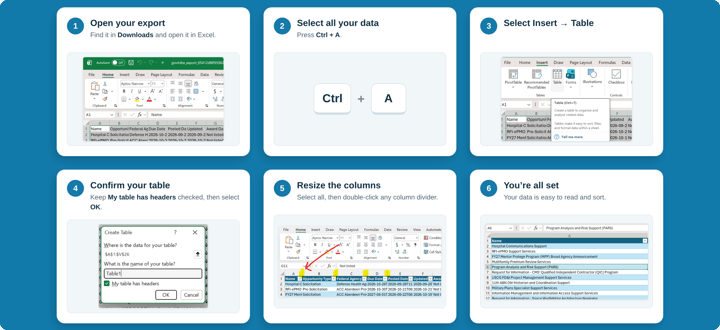
Everything in one column? Create a new workbook, go to Data → From Text/CSV, choose your file, set the delimiter to Comma, check the preview, and select Load. Then format it as a table.
Before you start analyzing
Check the columns. If everything appears in one column, re-import the CSV with Comma selected as the delimiter. Creating a table or widening columns won’t separate combined fields.
Preserve the data. Review dates and identifiers, especially fields with leading zeros, before using the data. Save a working copy as an Excel workbook (.xlsx) to keep your table and formatting.
05 / Troubleshooting
A few common export questions
If an export doesn’t look quite right, there are a few things worth checking before starting over.
Where’s my export?
Check your email for “Your GovTribe Export is Ready” or look in your GovTribe Notification Center. Larger exports may take longer to prepare.
Too many results to export?
Your plan has an export limit. Narrow the results by agency, category, location, or date range, then try again.
Different results than expected?
Semantic Search results can change when an export is prepared and are limited to 100 rows. For more predictable exports, use Keyword Search with filters.
Columns aren’t displaying correctly?
If values are combined in one column, re-import the CSV with Comma as the delimiter. If the data is split correctly but hard to read, create a table and auto-fit the column widths. Export fields also vary by record type.
Tip: Save the search behind your export
If you expect to pull similar data again, use Save This Search when the option is available. That way, you can return to your keywords and filters without recreating them from scratch. Remember that live search results may change as new data comes in.
A few tips before you dive in
✓
Start with a question. Decide what you’re trying to learn before choosing which data to search or export.
✓
Use filters before exporting. A focused dataset is usually easier to review and share than a very large one.
✓
Keep a link to the original records. Your exported data is useful for analysis, but you can always return to GovTribe for more context and updated details.
Questions?
Chat with our AI user guide for quick answers, or explore more guides to get the most out of GovTribe.
Chatting with our AI user guide is free and does not use any credits.