

Capture
Finding the right opportunity is only the start. GovTribe helps you track every pursuit, keep your team on the same page, and see how your pipeline is performing, all in one place.
In this guide, we’ll walk through how to set up pipelines, add pursuits, manage tasks and discussions, review reports, and let GovTribe AI help along the way.
Jump to a section
How it fits together
Pipelines are your capture process, broken into stages. Pursuits are the opportunities you’re working, and they move through those stages. Tasks and discussions keep the work on each pursuit moving.
You’ll find all of it under Capture in the GovTribe sidebar.
01 / Pipelines
Set up your pipeline
A pipeline gives you a board view of every pursuit and where it stands at a glance. You can have one pipeline or several, for example one per business unit or contract type.
1
Go to Capture → Pipelines and create a new pipeline.
2
Choose how to set up your stages: start from a GovTribe template, use one your team already made, or build your own from blank stages.
3
Give it a name and description, then add tags and permissions so the right people can see and work on it.
4
Drag stages to reorder them anytime. You can also add, rename, or remove stages as your process changes.
Every pipeline includes four standard stages. New pursuits start in Triage, so you can review them before committing. When a pursuit wraps up, mark it Won, Lost, or Abandoned to close it out and update your capture rate.
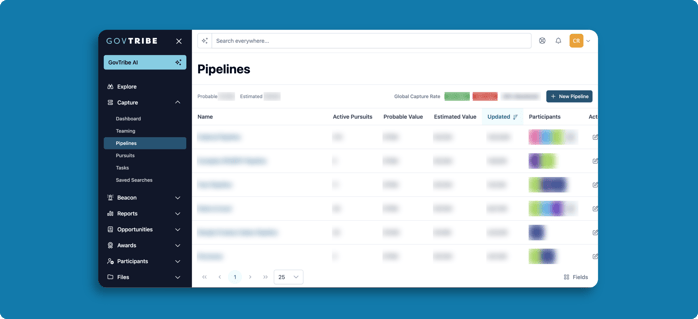
Capture → Pipelines
02 / Pursuits
Add and track pursuits
Turn any opportunity into a pursuit in one click. GovTribe brings the key details with it, so you don’t have to copy them over yourself.
From a GovTribe record
Select Add Pursuit on a supported record, like an opportunity, forecast, or award. The pursuit lands in Triage and links back to the source.
From scratch
Select New Pursuit from the Pursuits page, or add one directly to any stage in a pipeline.
What comes with each pursuit
✓
Key details. When you add a pursuit from a record, details like dates, agencies, set-asides, NAICS and PSC codes, and contacts come with it when they’re available.
✓
Value and win probability. Add an estimated value and your chance of winning, and GovTribe rolls them up into your pipeline’s probable value.
✓
Linked records. Connect related opportunities, awards, and other records to keep all of your context in one place.
To move a pursuit forward, drag its card to the next stage on your pipeline board.
03 / Tasks and discussions
Keep your team on the same page
Every pursuit has a next step. Tasks and discussions make sure someone owns it and nothing gets lost in an inbox.
Tasks
Give every next step an owner and a due date. Filter tasks by owner, due date, pipeline, or pursuit to see what’s coming up.
Discussions
Talk through pursuits in one place, and even start threads from email. Discussions stay on the pursuit’s record for anyone who joins later.
Tip: The Capture dashboard shows tasks due soon across all of your pipelines, so it’s an easy place to start your day.
04 / Reports
See how your pipeline is performing
Pipeline reports show your funnel, win-loss trends, and revenue projections, so you can see where to focus your team’s time.
Pipeline value Probable value Funnel by stage Win-loss trends Capture rate Tasks due soon
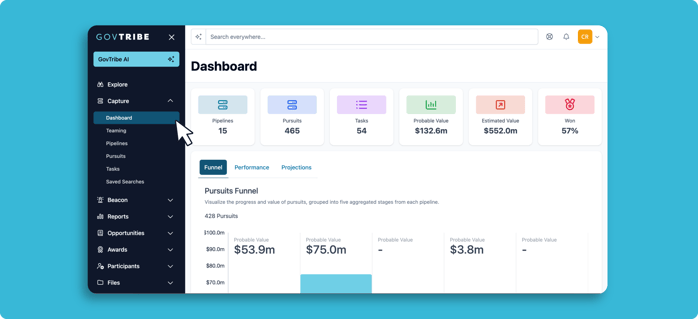
Capture → Dashboard shows pipeline value, outcomes, and work that needs attention
Capture dashboard
Get a quick read on pipeline value, win rates, recent outcomes, and the work that needs attention next.
Pursuit reports
On the Pursuits page, filter to any set of pursuits, then open Reports to chart just those.
05 / GovTribe AI
Let GovTribe AI help manage your pipeline
GovTribe AI works with your pipelines and pursuits, so it can help you fill gaps, catch problems early, and get ready for reviews.
AI
AI pipeline builder
Tell GovTribe AI what you do, and it’ll fill your pipeline with good-fit opportunities.
AI
Pipeline expansion
Have GovTribe AI find opportunities you missed, plus nearby buyers and markets.
AI
Pipeline reviews
Have GovTribe AI flag stale pursuits and missing details.
AI
Capture briefings
Have GovTribe AI build a leadership deck for your next capture review.
Try this prompt
“Review my pipeline. Flag pursuits that haven’t moved in a while, are missing key details, or have deadlines coming up, and suggest next steps.”
Want this on a schedule? Open GovTribe AI → Automations and choose a template like Pipeline health review or Pursuit stage-change briefing.
A few tips before you dive in
✓
Match stages to how you really work. Start from a template, then rename stages so they reflect your team’s actual capture process.
✓
Use Triage as a filter. Add anything that looks promising, then move only the best fits into your active stages.
✓
Keep values up to date. Reports are only as good as the estimated values and win probabilities behind them, so update them as you learn more.
Questions?
Chat with our AI user guide for quick answers, or explore more guides to get the most out of GovTribe.