

Market research
Good market research tells you who's buying, who's winning, and where the money is going, before you decide what to pursue.
In this guide, we'll walk through how to research buyers, competitors, and spending in GovTribe, use Beacon to find the right contacts, and keep your research up to date.
Jump to a section
Not sure where to start?
Use the search bar at the top of GovTribe to search across everything at once, or ask GovTribe AI. In search, Keyword Search finds exact terms, and Semantic Search finds records that match what you mean, even when the wording is different.
To get better results: Start with the service or product you want to research, then narrow by buyer, location, category, or date. If you get too many matches, add a filter. If you get too few, broaden your terms or try Semantic Search with a plain-language description.
01 / GovTribe AI
Start with GovTribe AI
One of the easiest ways to research a market is to ask. GovTribe AI searches GovTribe data for you, pulls the key records together, and explains what it found, so you can get the big picture before digging into the details.
Try one of these to start
Size up a market
"Summarize federal spending on cybersecurity services over the last three years. Which agencies spend the most, and which vehicles do they use?"
Research a buyer
"Give me an overview of this agency's recent awards, top vendors, upcoming recompetes, and active opportunities."
Size up competitors
"Who are the top vendors winning work under this NAICS code, and which agencies are they winning it from?"
For deeper research, select Use a skill in a chat for guided help with market research, capture reviews, and pricing.
02 / Buyers
Research agencies and buyers
Understanding a buyer helps you decide whether a pursuit is worth your time. In GovTribe, agencies and other public-sector buyers have profiles that bring their activity together in one place.
Federal agencies
Search agencies, sub-agencies, and offices. Each profile shows the agency's hierarchy, related activity, contacts, and files.
State and local buyers
Search states and jurisdictions, including local governments and education buyers, and review their opportunities, awards, and contacts.
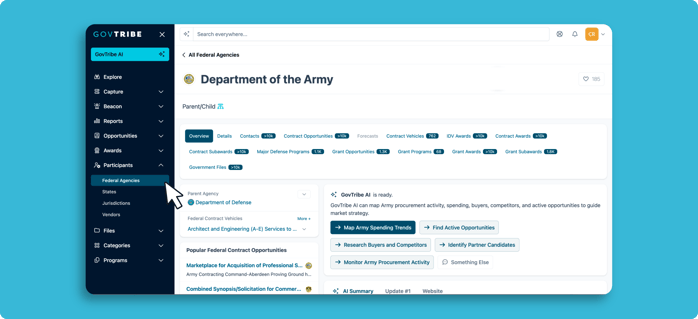
Participants Federal → Federal Agencies → Agency of your choice
What to look for
✓
Recent awards. See what the buyer has purchased, from whom, and for how much.
✓
Open and upcoming work. Check active opportunities and forecasts to see what's coming next.
✓
Expiring contracts. Look for awards ending soon, since they can signal a recompete.
How to start: Search for an agency or jurisdiction using the GovTribe search bar, open its profile, and review its awards, opportunities, forecasts, and contacts. Follow the linked records to learn more about a contract, incumbent, or upcoming requirement.
03 / Competitors
Research competitors and partners
Knowing who already wins work in your market helps you spot incumbents, size up the competition, and find good teaming partners.
Vendor profiles
Look up any company to see its identifiers, certifications, and award history.
Award records
See who won a contract, how much it's worth, which agency funded it, and how it connects to related awards.
New entrants
Use the New entrants report to see which vendors are just starting to win work in a market.
Tip: Looking for a partner rather than sizing up a competitor? Check certifications on vendor profiles, then use the GovTribe teaming network to find and connect with primes and subs.
How to start: Search for a company's name in GovTribe and open its vendor profile. Review the awards it has won, which agencies it serves, and its certifications. To find potential partners, compare vendors working in your target market and look for complementary capabilities or relevant past performance.
04 / Spending
See where the money is going
Reports give you ready-made views of government spending, so you can see trends without building a search from scratch.
Funding over time Top vehicles Top GWACs and BPAs Top grant programs New entrants
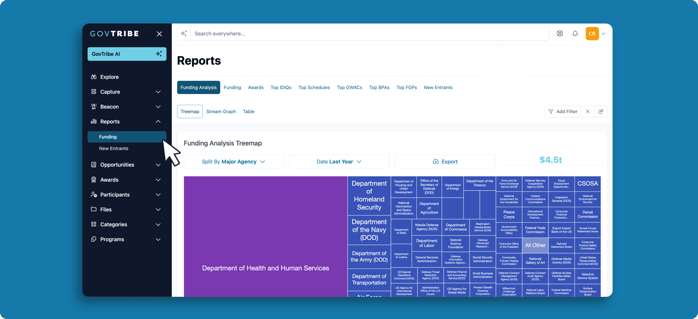
Reports → Funding
Analyze funding in a few steps
1
Open Reports → Funding.
2
Add filters for your market, like an agency, NAICS or PSC code, or date range.
3
Switch between views to see where funding is concentrated and how it's changed over time, then open the awards behind any trend.
You'll also find funding analysis on agency, vendor, vehicle, and category pages, filtered to that record.
Tip: Compare the same filters across different time periods to see whether spending is growing or shrinking. Open the awards behind a chart to check which contracts are driving the totals.
05 / Beacon
Use Beacon to find the people behind the market
You know which agencies are buying and which companies are winning. Now, who should you talk to? Beacon is the part of GovTribe where you research people and office contacts connected to government work, then organize the contacts worth following up with.
Think of it as the people side of your market research. Instead of starting with a name, you can start with an agency, company, job title, or source record, and work toward a useful contact list. Beacon gives you context to review, not a guarantee that every result is the decision-maker you need.
Beacon in three moves
Find contacts connected to your market. Check why they appear and what records they're linked to. Organize the relevant people into groups your team can use again.
Try it: find contracting contacts at an agency
Say you're researching a federal agency and want to identify people connected to its contracting activity. Here's a good first search.
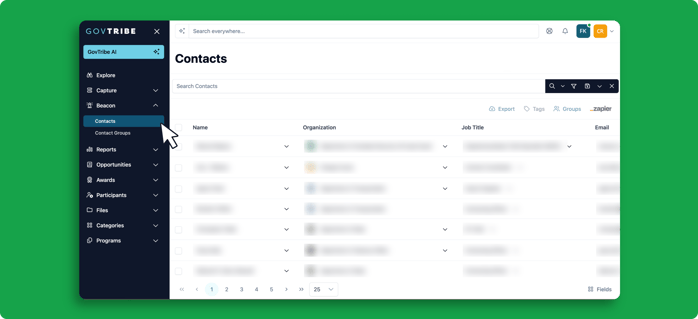
Beacon → Contacts
Four things to check before you reach out
A contact record tells you more than a name and email address. These fields help you judge whether a result fits your research.
Job Title and Organization
What position and organization are associated with this contact? Use these to check fit, not just the search keywords.
Seen As
Why GovTribe connected the person to a source, such as a point-of-contact listing or file reference. It is not the same as their job title.
Last Seen and Activity
When a feed last mentioned the contact and what source activity is available. "Last Seen" is not confirmation of their current job.
Related records
Open connected opportunities, forecasts, awards, or files to understand the work associated with the contact.
What about Intent or Buying Profile? Some contact profiles include extra Beacon intelligence, such as topic intent or an AI-generated buying profile. These views depend on your account's access and available data. Treat them as research context, not proof that a person plans to buy.
Turn one search into a contact list you can reuse
A saved search remembers the criteria that found the contacts. A contact group is the list of people you're keeping. You can use them separately or connect them.
If something looks missing
A blank email or phone field means that detail may not be available in the indexed sources. A hidden Intent or Buying Profile tab may reflect account access or unavailable data, not a problem with your search.
Getting too many results? Add an agency, company, or Seen As filter. Too few? Broaden the job-title terms or remove a filter. If your account shows Contacts Wizard, you can also try its guided search; it's available with Beacon intent data.
06 / Stay up to date
Keep your research up to date
Markets change. Instead of starting over each time, set GovTribe to keep watching for you.
Saved searches
Save any search to get notified when new opportunities, awards, or other records match.
Automations
Have GovTribe AI send you a regular market pulse on a buyer, or watch for new competitors, incumbents, and partners.
Choose a saved search for new matching records, or an AI automation for a recurring summary. Templates such as Buyer or agency market pulse and Partner, incumbent, and competitor watch can help you get started.
For saved-search alerts: Run a search, add filters, and select Save This Search. Name it and choose whether to receive email updates instantly, daily, or weekly. You can revisit saved searches later to change your criteria or notification frequency.
For AI automations: Open GovTribe AI → Automations, select a market-monitoring template, tell AI which buyers or competitors to watch, and review the schedule before enabling it.
A few tips before you dive in
✓
Start broad, then narrow. Look at a whole market first, then focus on the buyers and competitors that matter most to you.
✓
Follow the connections. Records in GovTribe link to each other, so you can move from an agency to its awards, the vendors behind them, and their contacts.
✓
Check the details. Review important dates, values, and conclusions against the original records before making decisions.
Questions?
Chat with our AI user guide for quick answers, or explore more guides to get the most out of GovTribe.