

ACCOUNT SETTINGS
Your GovTribe account should work the way you and your team do. A few settings help you keep your profile current, get useful notifications, manage access, and stay on top of your plan and AI usage.
This guide shows you where to find the most important account settings and how to update them, whether you're managing your own profile or administering an account for your team.
Jump to a section
Find your account settings
Open your user menu in GovTribe and select Settings or View Profile. Personal settings apply to you. Account settings, including billing and team access, may require the Account Owner or an Account Administrator.
01 / YOUR PROFILE
Keep your profile and sign-in details current
Your profile controls the basic information tied to your GovTribe login. You can update your name and contact details and review security options without changing your team's subscription.
1
Open the user menu → View Profile.
2
Review your name, email, and phone number. Update any details that have changed.
3
Select Save where needed. Follow the verification steps if you change your email address or phone number.
Tip: If you're changing an email or phone number, you may need your current password and must verify the new contact information before the change takes effect. Use the security settings on your profile when you need to update your sign-in protection.
02 / NOTIFICATIONS
Get the updates you actually want
GovTribe can notify you about relevant opportunities and activity in your workspace. Your personal notification preferences help you choose which updates to receive.
Opportunity recommendations
Choose whether to receive recommended or trending federal opportunities.
Team and workflow updates
Review available teaming, pipeline, and GovTribe AI notifications.
How: Open Settings → Personal → Notifications, review each notification type, and enable or disable the ones you need.
Saved-search alerts are separate. To change the emails for a specific search, open Capture → Saved Searches and edit that search's alert settings. Billing emails and credit-spending alerts are managed in account settings instead.
03 / TEAM ACCESS
Invite teammates and manage access
If more than one person uses GovTribe at your company, keep your account's users and permissions current. Account Owners and Account Administrators can send invitations, manage pending invites, and remove access when someone leaves.
1
Go to Settings → Account → Users and select Add user.
2
Enter your teammate's information and send the invitation. If they haven't joined yet, check their pending invitation and resend it if needed.
3
Review users and roles after they join. Grant administrator access only to people who need to manage the account, billing, or other users.
Tip: The number of people you can invite depends on your plan. If you've reached the user limit, review active users and pending invites or change your plan before adding someone else.
04 / BILLING
Review your plan, payments, and invoices
The Billing page brings your subscription details together. Account Owners and Administrators can review the plan, seats, payment information, upcoming charges, and invoices.
Plan and seats
See your current plan, available user capacity, and renewal or cancellation date. Review plan changes or seat options if needed.
Payments and invoices
Review payment details and upcoming charges, update billing information, and open or download invoices.
How: Go to Settings → Account → Billing. Use Change plan, Manage seats, or the payment and billing options available on your account.
Good to know: Buying AI credits does not change your GovTribe subscription plan. Your plan and AI usage are related, but they're managed separately. Some Enterprise and legacy accounts may need assistance for billing changes.
05 / AI CREDITS
See how your team uses AI credits
GovTribe AI and other credit-powered features use an account-level credit balance. You can see how many credits are available, where they're being used, and which spending controls are turned on.
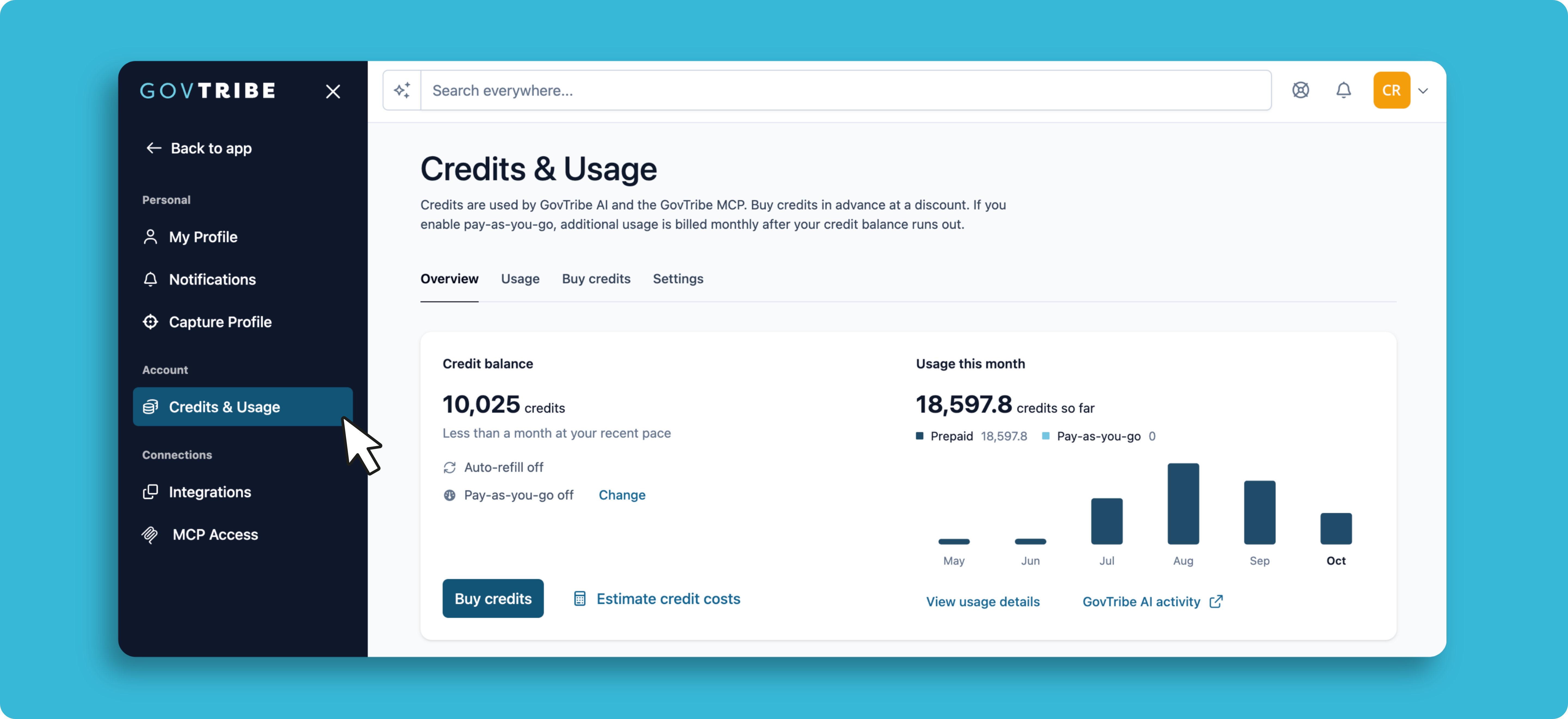
Go to Settings → Account → Credits & usage to review the balance and usage for your account.
Overview. Check the available credit balance and recent credit activity.
Usage. Review usage by person or tool to understand where credits are going.
Buy credits. Review credit-pack options when your team needs more capacity.
Settings. Review available controls such as auto-refill, pay-as-you-go, monthly limits, and spending alerts.
Who can change these settings? Account Owners and Administrators can manage account-level credit settings and purchases. Teammates can use available credits subject to account access and limits.
See what you've done in GovTribe AI
GovTribe AI has a separate Usage tab. Open GovTribe AI → Usage (above Automations) to review completed conversations, automation runs, generated files, Skills, and their recorded credits. Switch between the last 7, 30, or 90 days.
Check usage as you chat. Every GovTribe AI conversation also has a Usage box where you can monitor the credits used in that chat. For a broader view of activity across conversations and other AI tools, open the GovTribe AI → Usage tab.
Who can see what? Everyone with access can review their own AI activity. Account Owners and Administrators can also switch to the Account view to see team activity. This is a read-only report; go to Settings → Account → Credits & usage for your credit balance, purchases, and spending controls.
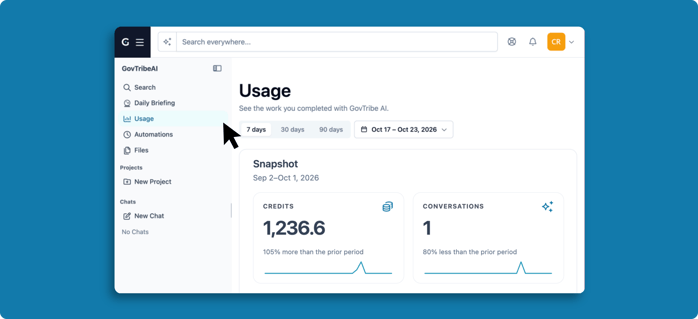
In GovTribe AI → Usage, review completed AI work, credit activity, and generated outputs in one place.
06 / INTEGRATIONS
Connect GovTribe to your other tools
You can connect GovTribe to tools your team already uses. Integrations can help your team move information into a CRM or receive updates in a shared workspace.
Zapier
Build automated workflows with other apps.
Slack
Send supported GovTribe updates to your team channel.
Unanet CRM
Connect supported customer and capture workflows.
How: Open Settings → Connections → Integrations, choose the integration you want, and follow the setup instructions.
Don't see the option to connect an integration? Some connections require Account Owner or Administrator permissions. If you don't have access, ask your account admin for help.
A few tips before you dive in
✓
Keep your profile up to date. Confirm your email and phone number so important account messages can reach you.
✓
Review access regularly. Keep your user list and administrator permissions current.
✓
Check usage before changing limits. Look at your team's actual credit activity before adjusting spending controls.
Questions?
Chat with our AI user guide for quick answers, or explore more guides to get the most out of GovTribe.