

MCP & integrations
Your work doesn’t have to stay in one platform. You can connect GovTribe to AI tools like ChatGPT and Claude, or use Zapier to move information between GovTribe and the other apps your team uses.
This guide covers the two main ways to connect GovTribe, what you can do with them, and how to get started. It also shows how to bring your GSA eBuy opportunities into GovTribe.
Jump to a section
A quick note about MCP credits
Most GovTribe MCP tools use credits. To check your balance, go to Settings → Account → Credits & usage. Account owners and admins can enable credits and add more anytime.
MCP vs. Zapier
Which connection do you need?
MCP and Zapier both connect GovTribe to other tools, but they work a little differently.
01 / GovTribe MCP
Connect GovTribe to your AI tools
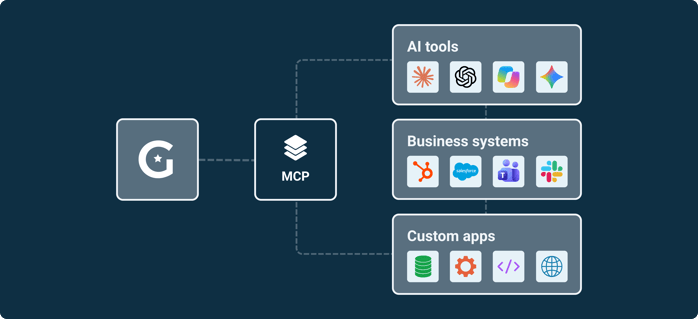
MCP stands for Model Context Protocol. It’s a way for AI tools to connect to other apps and data. With GovTribe MCP, you can use GovTribe information right from the AI tools you already work in.
Instead of jumping between tabs or copying information back and forth, your AI can look things up in GovTribe and, with the right permissions, help you update your GovTribe workspace.
Research with real data
Ask about opportunities, awards, vendors, and other govcon data.
Update your workspace
Create or update pursuits, tasks, and saved searches from supported AI tools.
Build custom workflows
Bring GovTribe into your own AI tools, dashboards, and apps.
Settings → Connections → MCP access
Get started with MCP
1
In GovTribe, open Settings → Connections → MCP access to review your access and connection options.
2
Open the app or connector directory in your AI tool, search for GovTribe, and start the connection.
3
Sign in to GovTribe, review the permissions, and allow access. Then try asking your AI a question using GovTribe.
Where to find GovTribe in your AI tool
ChatGPT
Apps directory → Search GovTribe → Connect
Claude
Connectors → Search GovTribe → Install and connect
Microsoft 365 Copilot
Agent Store → Search GovTribe → Add
Using another AI tool? Any AI tool that supports MCP, including developer tools and custom apps, can connect with an MCP API key. You’ll find key management under MCP access. Connection steps vary by tool.
Try one of these to start
Find opportunities
“Using GovTribe, find three opportunities that fit our company and explain why.”
Research your market
“Use GovTribe to show recent awards, likely competitors, and buying trends for this agency.”
Manage capture
“Using GovTribe, create a task in my pipeline to follow up on this opportunity next week.”
02 / Zapier
Connect GovTribe to your other apps
Zapier helps different apps work together automatically. Instead of copying information from GovTribe into your CRM, spreadsheet, or another tool, you can set up a workflow to handle it for you.
In Zapier, these workflows are called Zaps. Each one starts with a trigger and follows it with an action.
For example
Trigger
A new opportunity matches a GovTribe saved search
Then → action
Zapier adds the opportunity to your CRM or spreadsheet
Other things you could connect
Saved search results Contacts Pipelines and pursuits CRM updates Team notifications
Get started with Zapier
1
In GovTribe, go to Settings → Connections → Integrations and select Connect to Zapier.
2
Follow the prompts in Zapier to connect your GovTribe account.
3
Build your first Zap. Choose what should trigger it, which app should respond, and what action it should take. Test it, then turn it on.
Tip: Start with one small workflow, like sending new saved-search results to a spreadsheet. Once it’s working, you can build on it.
03 / GSA eBuy
Bring your GSA eBuy opportunities into GovTribe
If you hold a GSA Schedule or another federal contract vehicle, you can connect GSA eBuy to GovTribe. Then you can find and track task order opportunities posted on major federal contract vehicles right alongside the rest of your research.
These opportunities appear in Federal Contract Vehicle Opportunities, which is currently in beta. You’ll see only the notices your eBuy account is authorized to receive. The eBuy integration is available on GovTribe Pro and Enterprise.
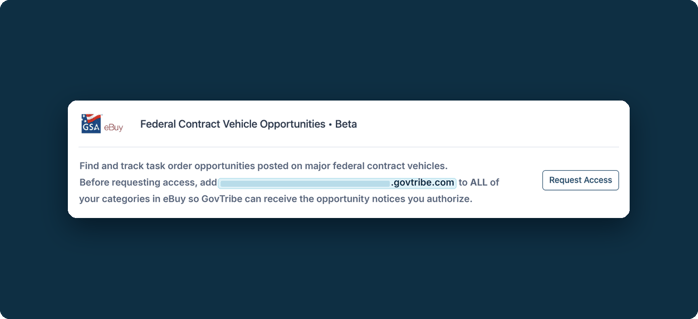
Settings → Connections → Integrations
Get started with eBuy
1
In GovTribe, go to Settings → Connections → Integrations and find the GSA eBuy section.
2
Copy the email address shown there. It ends in govtribe.com and is unique to your account.
3
Log in to GSA eBuy and add that email address to your account.
4
In eBuy, assign the new address to all of your categories.
5
Go back to Integrations in GovTribe and select Request Access.
Add it to every category. GovTribe only receives notices for eBuy categories that include your GovTribe address, so remember to assign it to any categories you add later.
A few tips before you dive in
✓
Start with the tool you already use. If you work in ChatGPT, Claude, or Copilot, try MCP first. If you want information to move between your apps automatically, start with Zapier.
✓
Review what your tools can access. Check connection permissions and confirm important changes before updating your workspace.
✓
Keep an eye on usage. Most MCP tools use GovTribe credits, so check your balance as you explore.
Keep exploring
See how other teams use GovTribe MCP
Every team works a little differently. These three companies connected GovTribe to their AI tools and found ways to make government contracting work easier.
Knowesis Cut research time by over 80% Knowesis uses GovTribe MCP to automate research and track three times as many opportunities without new hires. Read the story → Alpha Omega Built custom tools in three months With GovTribe MCP, Alpha Omega built account dashboards, pipeline agents, and pricing research tools. Read the story → West 4th Strategy Saves its CGO 12–14 hours a week West 4th Strategy's chief growth officer saves 12–14 hours each week with MCP-powered workflows, with benefits extending across the team. Read the story →
Questions?
Chat with our AI user guide for quick answers, or explore more guides to get the most out of GovTribe.
Chatting with our AI user guide is free and does not use any credits.