

Getting started
Welcome to GovTribe! Whether you’re here to find opportunities, research your market, team with other contractors, or try GovTribe AI, you’re in the right place.
There’s a lot you can do in GovTribe, but you don’t need to learn it all at once. This guide shows you around, helps you set up your account and connect your tools, and walks you through your first search. From there, you can pick what to explore next.
Jump to a section
Where to start
Take a quick look around, set up your profiles, connect the tools you use, and run one search for the kind of work you do. That’s all it takes to start seeing what GovTribe can do for you.
01 / Look around
Get to know your workspace
When you log in, you’ll see a menu on the left side of the screen. That’s where everything lives. It may look like a lot at first, but it all comes down to three things.
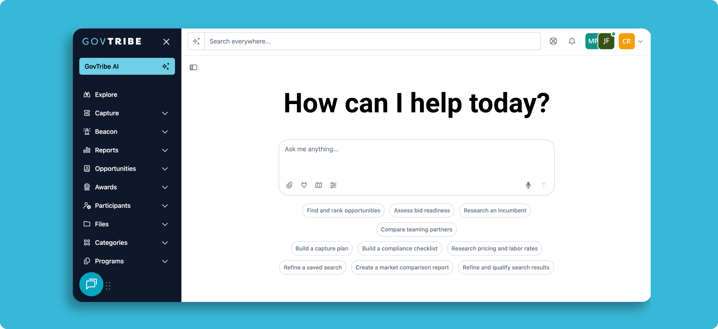
Find work
Opportunities worth your time
Explore
Opportunities picked for you, plus what’s popular
Opportunities
Contracts, grants, and forecasts
Awards
Who won what, and for how much
Files
Solicitation documents and other files, all searchable
Get work done
Tools to help you win
GovTribe AI
Your govcon assistant for research, files, and more
Capture
Your pipeline of pursuits and tasks
Teaming
Primes and subs looking for partners
Beacon
The people to contact at agencies and companies
Know your market
Who’s buying, who’s winning
Reports
Spending trends at a glance
Participants
Agencies, buyers, and vendors
Categories
NAICS and PSC codes, and the work behind them
Programs
Defense and grant programs, and their awards
Regulations
Federal Register rules, proposed rules, and presidential documents
What you see can vary by plan.
Always within reach
A few tools stay in the same place on every page, so you can use them wherever you are in GovTribe.

Search bar Top of the page
Search all of GovTribe from any page, including opportunities, awards, agencies, vendors, contacts, and files. Use keywords for exact matches, or Semantic Search to find records that match what you mean.

GovTribe AI Top of the menu
Chat with GovTribe AI, check your Daily Briefing, create files, and set up automations.

Notification Center Bell icon
See your updates in one place, like teaming requests, finished exports, and activity on your work.

Help Life-ring icon
Get help and support whenever you need it.

Your user menu Your initials, top right
Open Settings, your profile, Integrations, and Credits & usage.
Good to know: everything is connected. Open any record, like an agency or opportunity, to see its related awards, contacts, files, and more. On records and search results, look for the GovTribe AI button to ask questions about what you’re viewing.
02 / Set up your account
Set up your account in a few minutes
A few quick settings make GovTribe work better for you. Open the user menu in the upper-right corner and select Settings.
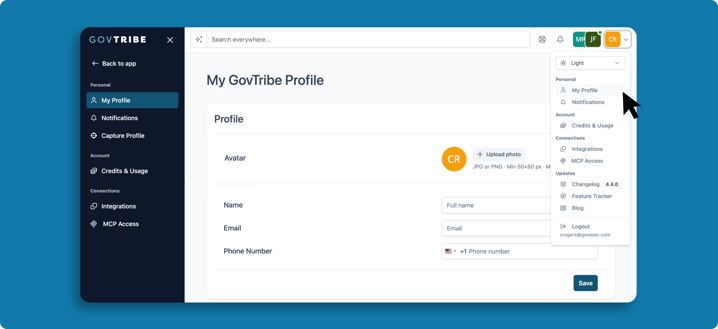
1
Check your profile. Under Personal → My profile, confirm your name and contact info, and add a photo if you’d like. While you’re there, turn on two-factor authentication for extra security.
2
Choose your notifications. Under Personal → Notifications, pick the updates you want, like recommended opportunities and teaming matches.
Make GovTribe AI work your way
A little context helps GovTribe AI give you more useful answers. Open GovTribe AI, select the Tune GovTribe AI sliders icon beside the chat box, and open Custom Instructions.
Tell it about you. Share your role, what your company does, the agencies or markets you focus on, and the types of work you pursue.
Tell it how to help. Ask for concise summaries, clear evidence, tables, or recommended next steps—whatever makes the answers easiest for you to use.
Example to make your own
“I lead business development for a small cybersecurity firm focused on federal civilian agencies. When reviewing opportunities, start with a quick fit assessment, flag important risks, and suggest next steps.”
While you’re there, check Memory & context to choose whether GovTribe AI can use memories, past conversations, and your GovTribe data. You can also adjust Intelligence and Response length. You can change these settings anytime.
Set up your two profiles
GovTribe has two profiles, and they do different jobs. Your capture profile is about you and how you team in GovTribe. Your vendor profile is about your company and how buyers and partners find it.
Capture profile · You
For teaming in GovTribe
Your personal profile for the GovTribe teaming network. Select the company you work for and whether you usually lead bids as a prime or join teams as a sub. GovTribe uses it to match you with teaming partners and recommend opportunities.
How: In Settings, go to Personal → Capture profile.
Vendor profile · Your company
For getting your company found
Your company’s profile in GovTribe, where agencies, primes, and subs land when they find you in search. Claim it to add a tagline, capability statement, teaming interest, contact email, and logo. Claimed profiles can appear as featured vendors in search.
How: Search for your company under Participants → Vendors, then select Claim this Vendor.
Set up both. Your capture profile helps you find partners, and your vendor profile helps buyers and partners find you.
Add your teammates
GovTribe is better with your team. Invite your coworkers so you can share searches, work on pursuits together, and keep your pipeline in one place.
Only admins can add teammates. Not an admin? Open Users from the user menu to see who manages your account, and ask them to send the invite.
1
Open Users. Open the user menu and select Users, under Account.
2
Check your seats. Make sure your account has room for another user. User limits vary by plan.
3
Send the invite. Select User to open the invite form, enter your teammate’s name and work email, and send it. GovTribe emails them the steps to finish setting up.
4
Follow up if needed. Teammates show as Pending until they accept. Invites expire after 14 days, so select Resend Invite if someone can’t find the email.
03 / Connect your tools
Connect the tools you already use
GovTribe works best when it’s connected to the rest of your work. You don’t need all of these, so set up the ones that fit how your team works.
Contract vehicles
Bring in your vehicle opportunities
Hold a GSA Schedule or another vehicle? Connect your eBuy access to see those opportunities right alongside everything else. Available on GovTribe Pro.
How: Open the user menu, select Integrations, and connect eBuy. See the steps →
Other apps
Send GovTribe updates where you work
Use Zapier to send new opportunities or pursuits to your CRM, spreadsheets, or team chat. You can also connect Slack and Unanet CRM.
How: Open the user menu, select Integrations, then Connect to Zapier.
Files and email
Give GovTribe AI your context
Connect Google Drive, Gmail, SharePoint, or Outlook so GovTribe AI can use your capability statements, past performance, and more.
How: Open GovTribe AI → Connectors, choose a tool, and sign in.
Your AI tools
Use GovTribe in ChatGPT, Claude, and more
Already work in another AI tool? GovTribe MCP lets it search GovTribe data and update your workspace.
How: Find GovTribe in your AI tool’s app or connector directory, then sign in to GovTribe.
Some connections depend on your plan or permissions, and GovTribe AI and MCP use credits.
Connect your GSA Schedule through eBuy
If your company holds a GSA Schedule, you can see your eBuy opportunities in GovTribe. GovTribe gives your account its own email address. Add it in eBuy, and GovTribe can receive the opportunity notices you authorize.
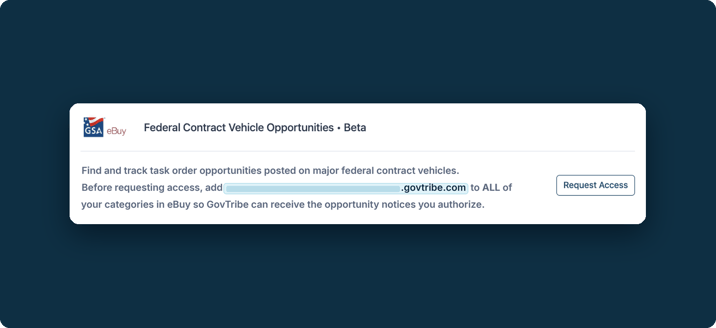
1
Open Integrations. Open the user menu and select Integrations.
2
Copy your GovTribe email address. In the GSA eBuy section, copy the email address shown. It’s unique to your account.
3
Add it in eBuy. Log in to GSA eBuy and add that email address to your eBuy account.
4
Assign it to all of your categories. In eBuy, assign the new email address to every one of your categories, so GovTribe receives notices for all of them.
5
Request access. Back in GovTribe, return to Integrations and select Request Access.
04 / Your first search
Find your first opportunity
The best way to learn GovTribe is to use it. Here’s a simple first win.
1
Search for what you do. Type a few words about your work in the search bar at the top, like “cybersecurity services” or “janitorial services Virginia.”
2
Narrow it down. Use filters to focus on what matters to you, like an agency, set-aside, or due date.
3
Save your search. Save it, and GovTribe will let you know when new opportunities match, so you don’t have to check back every day.
4
Track what you like. Found a good fit? Select Add Pursuit to add it to your pipeline and keep track of it.
Choose a search mode
Search pages let you choose how GovTribe reads what you type. Pick the mode that fits what you’re looking for.
Keyword Search · Default
When the exact words matter
Finds records that use your exact words, phrases, acronyms, or ID numbers. Use operators to combine or exclude terms.
Try: "cloud migration" + security -staffing
Semantic Search
When the idea matters more
Finds records that match what you mean, even when they use different words. Great for market research and finding similar work. Describe the work in plain language, with no operators.
Try: secure cloud migration work that is not primarily staffing
Semantic Search returns the closest matches instead of every related record, so you’ll see Top matches rather than a result count.
Keyword search operators
In Keyword Search, these symbols help you find exactly what you need.
| Use | To | Example |
|---|---|---|
" " |
Match an exact phrase | "technical peer review" |
+ |
Require both terms | "financial management" + audit |
| |
Match any of the terms | "flight training" | "flight instruction" |
- |
Exclude a term | cybersecurity -staffing |
( ) |
Group alternatives | "public health" + (analytics | reporting) |
* |
Match words that start the same way | cyber* training |
~1 ~2 |
Allow close spellings (~1 is narrower, ~2 is broader) | telematics~1 maintenance |
Good to know: use | instead of OR, and + instead of AND. GovTribe reads OR, AND, and field searches like agency:NASA as regular words. To narrow by agency, NAICS code, date, or set-aside, use filters instead.
Or just ask GovTribe AI
Not sure where to start? Open GovTribe AI from the menu and ask in plain language. It searches GovTribe for you and explains what it finds.
Try this prompt
“We provide [what you do]. Find open opportunities that could be a good fit for us, and explain why.”
GovTribe AI uses credits, and free trials include 2,000 to get you started.
05 / What’s next
Pick what you want to do next
There’s no single right way to use GovTribe. Start with whatever matters most to you right now. For ideas, see how other teams use GovTribe →
Market researchResearch your marketSee who’s buying, who’s winning, and where the money is going.Read the guide → TeamingFind teaming partnersConnect with primes and subs who want to team on the same work.Read the guide → CaptureManage your pipelineTrack pursuits, assign tasks, and keep your team on the same page.Read the guide → GovTribe AIUse AI and automationsChat with GovTribe AI, get daily briefings, and automate routine work.Read the guide → ConnectionsConnect your other toolsUse GovTribe in ChatGPT, Claude, and other AI tools, or with Zapier.Read the guide → AccountManage your accountAdd teammates, manage credits, and keep your account secure.Read the guide →